
Video, Photo & TV Manuals
Manuals
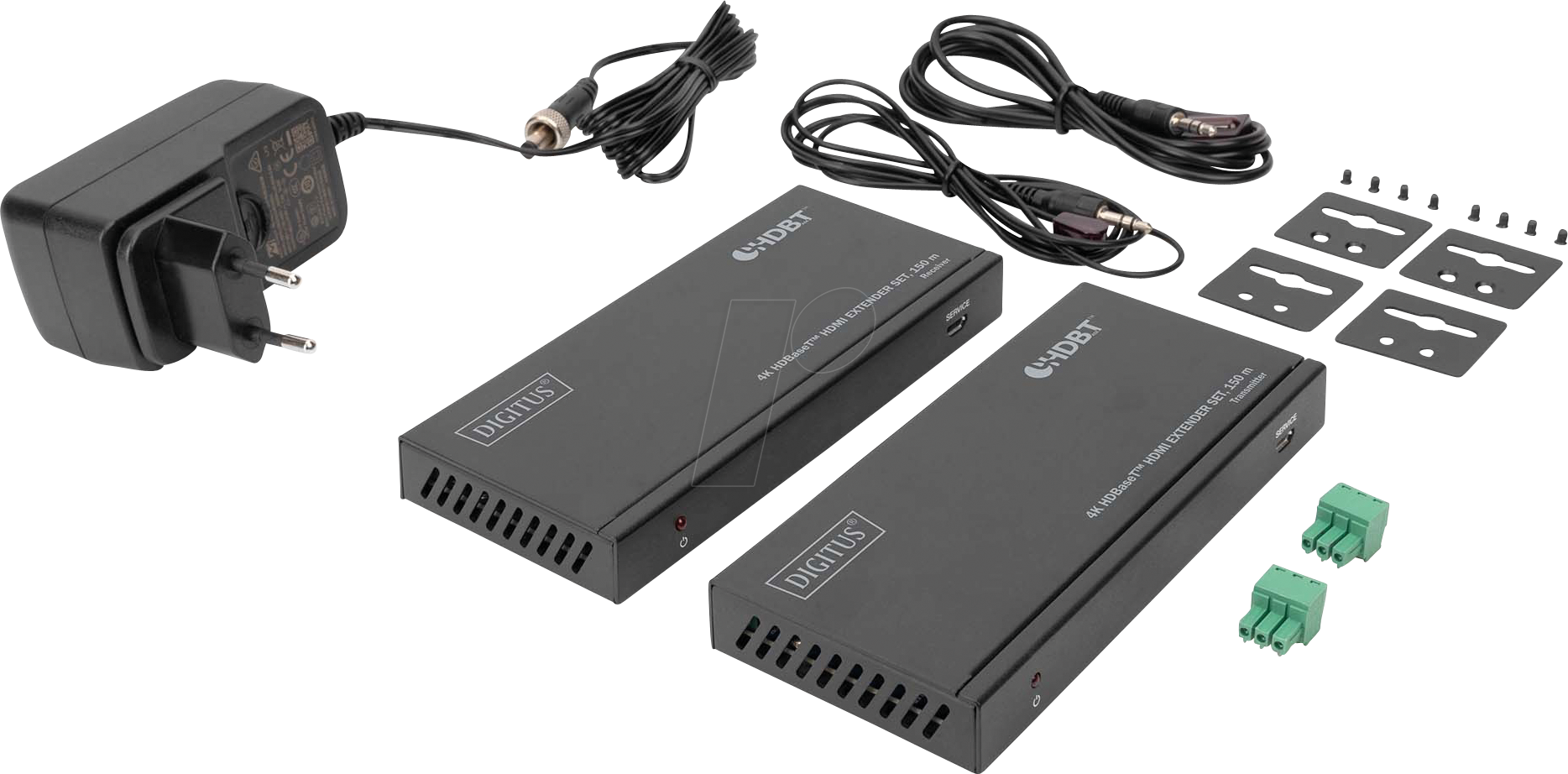
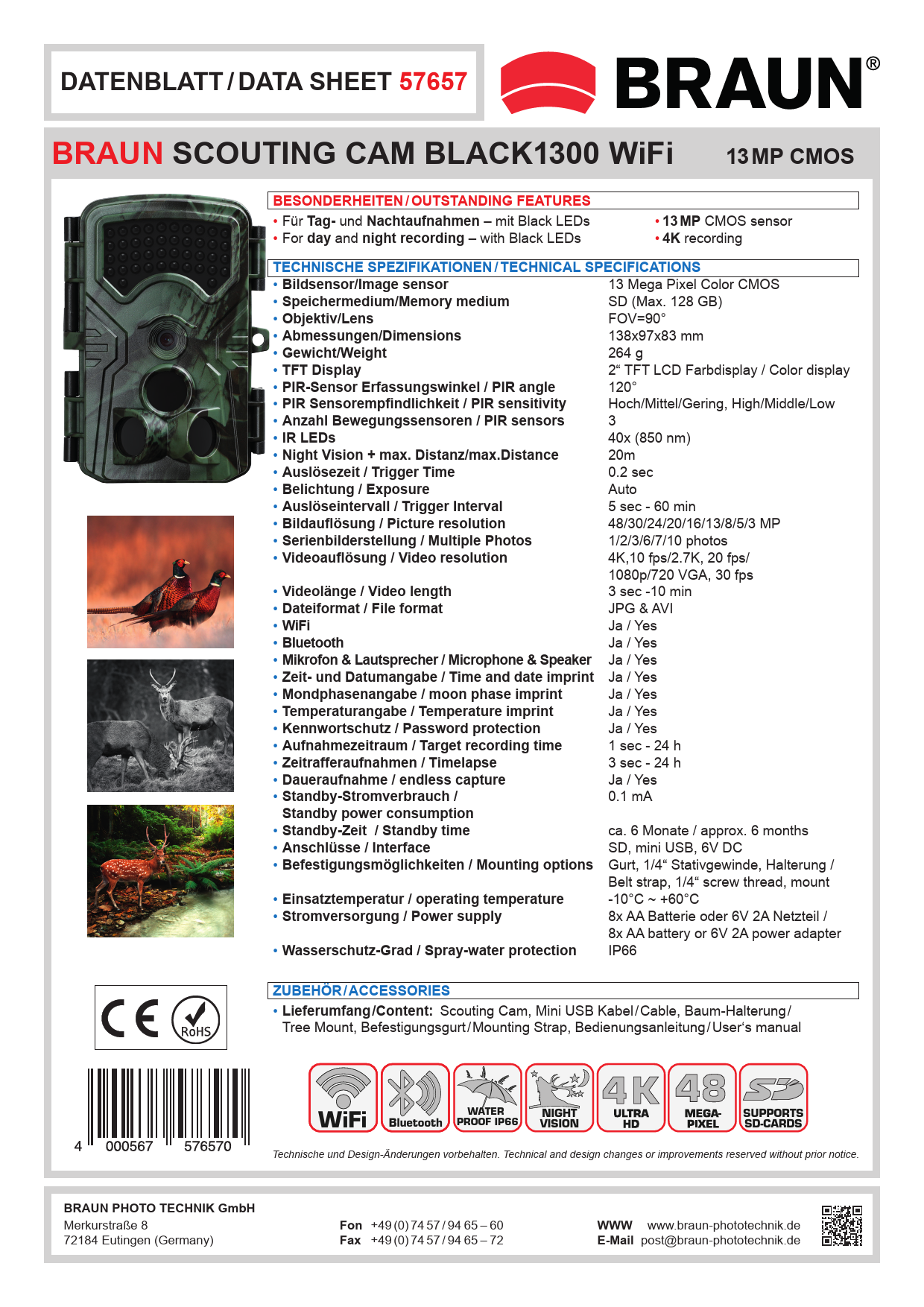
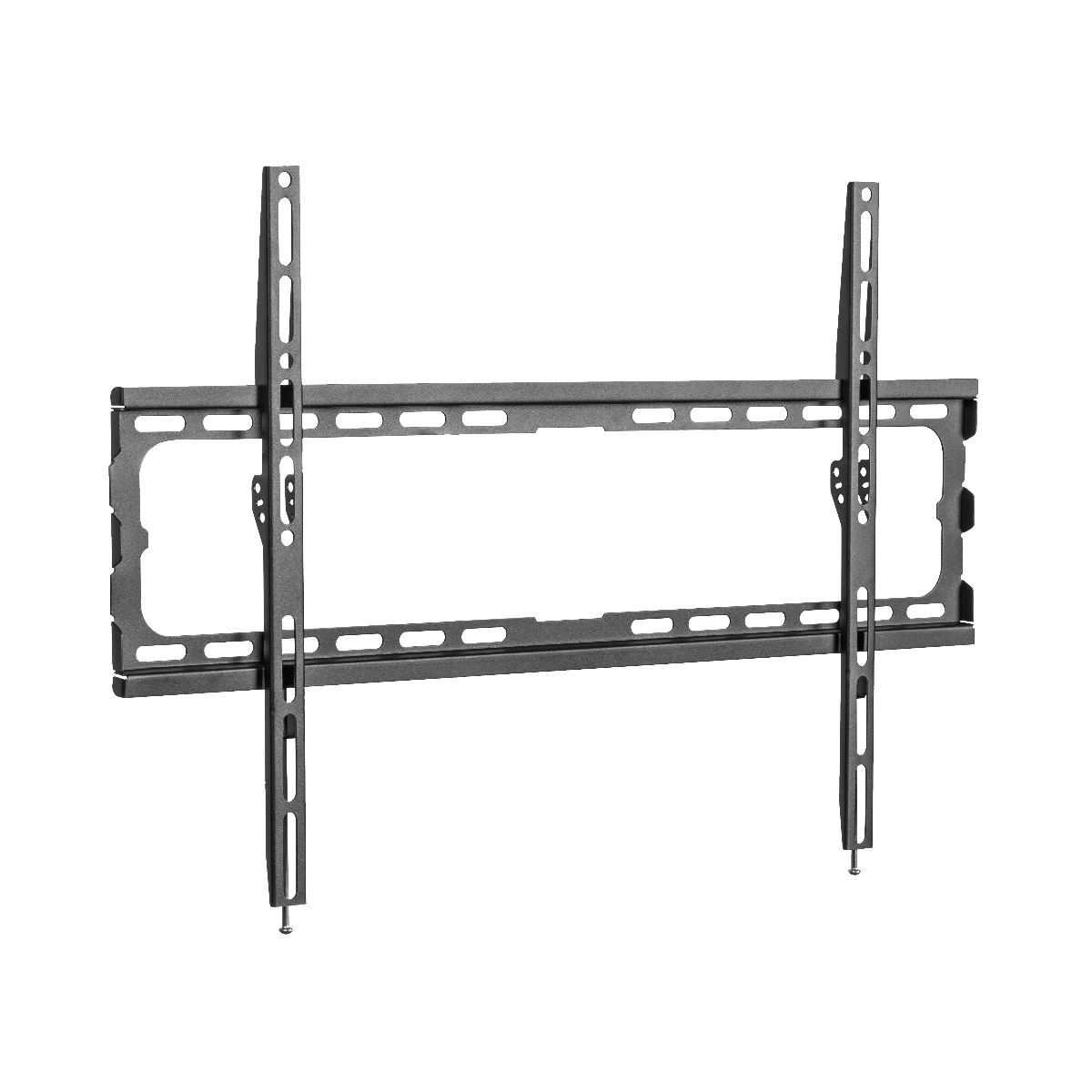
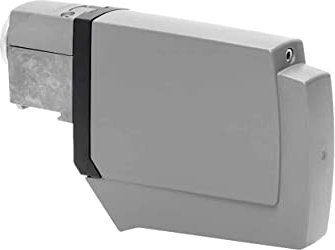
Video, Photo & TV Manuals
Introduction
Why Manuals Matter
Video, Photo & TV manuals are essential guides that help you set up, operate, and troubleshoot your imaging and entertainment devices. Whether you own a DSLR camera, a mirrorless body, a camcorder, a smart TV, or a projector, the manual translates complex technology into practical steps. It saves time, protects your investment, and ensures you get the most from your device’s features.
What This Guide Covers
This description explains common sections found in manuals, how to interpret them, and best practices for setup, safety, operation, troubleshooting, maintenance, and updates. It also highlights differences among video, photo, and TV devices and offers quick tips for efficient use.
Getting Started
Unboxing and Safety
- Verify contents against the packing list (device, cables, batteries, remote, lens caps, documentation).
- Read the safety section first: electrical ratings, ventilation requirements, battery handling, lens care, and warnings about moisture and heat.
- Keep packaging for returns, transport, or warranty services.
Before First Use
- Charge batteries fully and condition them as recommended.
- Update firmware if prompted by the manual to ensure compatibility and performance.
- Note serial numbers and register the product for warranty.
Setup and Installation
Photo Devices (Cameras)
- Attach lens responsibly: align marks, avoid dust, and lock securely.
- Insert battery and memory card oriented as indicated; format the card in-camera.
- Set language, date/time, and file numbering options.
- Configure basic shooting modes (Auto, Program, Aperture Priority, Shutter Priority, Manual).
Video Devices (Camcorders, Cinema Cameras)
- Mount on a stable tripod with appropriate payload rating.
- Connect power: choose AC for long sessions or high-capacity batteries; manage cables to prevent strain.
- Initialize media: SD, CFexpress, CFast, or SSD; format and set recording codec/bitrate.
Televisions and Displays
- Place on a stable surface or follow VESA mounting instructions; ensure clear airflow.
- Connect antennas, set-top boxes, soundbars/AVRs via HDMI eARC, and network via Ethernet or Wi‑Fi.
- Run the initial setup wizard: region, channel scan, input naming, smart TV account sign-in.
Core Features and Controls
Camera Controls
- Exposure triangle: shutter speed, aperture, ISO; use exposure compensation for quick adjustments.
- Focus modes: Single, Continuous/AF-C, Manual; AF area options for moving or static subjects.
- White balance presets and custom Kelvin for consistent color.
- Drive modes: single shot, burst, bracketing, self-timer.
Video Recording Options
- Resolution and frame rate: 1080p for general use, 4K for detail, high FPS for slow motion.
- Color profiles: Standard, Log, HLG; Log requires grading for maximum dynamic range.
- Audio: select input source, set levels with meters, enable limiters, and monitor via headphones.
TV Picture and Sound
- Picture modes: Cinema/Filmmaker for accuracy, Vivid for showrooms, Game mode for low latency.
- Calibration basics: adjust brightness, contrast, color temperature, sharpness, and motion smoothing.
- Sound: select TV speakers, ARC/eARC to soundbar/AVR, enable passthrough for Dolby/DTS when supported.
Connectivity and Integration
Wired Connections
- HDMI versions: ensure cable matches device capabilities (4K/120Hz, eARC, VRR).
- USB roles: data transfer, tethering, charging, or webcam mode (UVC/UAC).
- Audio I/O: mic/line levels, phantom power via external preamps, headphone monitoring.
Wireless Features
- Wi‑Fi for firmware updates, app control, and media transfer.
- Bluetooth for remotes, shutter releases, and low-energy connections.
- Screen casting: Miracast, AirPlay, Chromecast; ensure same network and permissions.
Storage and File Management
Media Types and Formatting
- Use recommended speed classes (UHS, V30/V60/V90, CFexpress types) for video bitrates.
- Format cards in-device; avoid mixing filesystem types across brands.
File Naming and Organization
- Customize file prefixes to avoid name collisions.
- Use folders per project/date; back up with 3-2-1 rule (3 copies, 2 media types, 1 offsite).
Transfer and Backup
- Use fast readers; verify checksums for professional workflows.
- For TVs, use certified drives for DVR features; safely eject to prevent corruption.
Image and Video Quality
Exposure and Color
- Enable histograms and zebras to prevent clipping.
- Save RAW/LOG for grading; use LUTs to preview final looks.
- For TVs, enable filmmaker or calibrated mode to minimize processing artifacts.
Stabilization and Sharpness
- Combine optical, in-body, and electronic stabilization where supported.
- Use appropriate shutter angles/speeds to maintain natural motion.
- Disable excessive sharpening on TVs and in-camera for cleaner detail.
Audio Management
Capture
- Position microphones close; use wind protection outdoors.
- Set gain to avoid peaking; monitor with headphones.
- Dual-system sound: clap or timecode sync when recording separately.
Playback and TV Audio
- Choose eARC for uncompressed formats; enable lip-sync correction if needed.
- Set dialogue enhancement or center channel emphasis where available.
Smart Features and Apps
Cameras and Camcorders
- Mobile apps for remote control, geotagging, and file transfer.
- Tethering to computers for live view, control, and direct saving.
Televisions
- App stores for streaming services; keep apps and OS updated.
- Voice assistants for search and control; review permissions and privacy settings.
Maintenance and Care
Cleaning and Handling
- Use blower and sensor-cleaning procedures per manual; avoid harsh solvents.
- Store devices in dry, cool places; use desiccants to counter humidity.
- Replace worn cables, gaskets, and batteries as maintenance items.
Firmware and Software
- Check release notes before updating; ensure power stability during updates.
- Back up settings profiles where supported; recalibrate displays after firmware changes.
Troubleshooting
Cameras and Video Devices
- Focus issues: recalibrate AF, clean contacts, check AF mode and light levels.
- Overheating: reduce resolution/bitrate, allow rest, improve airflow.
- Recording stops: verify media speed, disable auto power off, ensure power supply adequacy.
Televisions
- No signal: confirm input selection and cable integrity; power-cycle sources.
- Network issues: restart router, re-enter credentials, or use Ethernet.
- Picture artifacts: disable motion interpolation, adjust noise reduction, check source quality.
Accessibility and Ergonomics
Inclusive Features
- Cameras: enlarge fonts, high-contrast UI, function custom keys.
- TVs: screen readers, audio description, closed captions, high-contrast modes.
Ergonomic Tips
- Balance camera rigs; use grips and straps to reduce fatigue.
- For TVs, place at eye level with proper viewing distance relative to screen size.
Safety and Compliance
Electrical and Environmental
- Match voltage and plug types; use surge protection.
- Observe operating temperature and humidity ranges.
- Follow recycling directives for batteries and electronics.
Child and Pet Safety
- Secure TV stands and wall mounts; use anti-tip straps.
- Keep small accessories and batteries out of reach.
Best Practices and Tips
For Photographers
- Shoot RAW+JPEG for flexibility; maintain lens and sensor hygiene.
- Create custom profiles for different lighting conditions.
For Videographers
- Plan shot lists; set white balance and exposure consistently across clips.
- Record room tone and maintain continuity logs.
For TV Owners
- Calibrate with basic test patterns or hire a professional.
- Disable logo dimming only when necessary; prevent burn-in with varied content and screen savers.
When to Contact Support
Indicators
- Persistent error codes, hardware faults, failed updates, or physical damage.
- Warranty verification and authorized service procedures.
Glossary (Quick Reference)
Key Terms
- Aperture: lens opening affecting exposure and depth of field.
- ISO: sensor sensitivity to light.
- Shutter speed: duration of exposure.
- Bitrate: data rate of video/audio recording.
- HDR: High Dynamic Range for greater brightness and color range.
- eARC: enhanced Audio Return Channel for high-bandwidth audio.
- LUT: Look-Up Table for color transformation.
Conclusion
Getting the Most from Your Manual
Read your manual thoroughly, bookmark key sections, and keep a digital copy for searchability. Update firmware responsibly, maintain your equipment, and use recommended accessories. With proper setup and ongoing care, your video, photo, and TV devices will deliver the performance and reliability you expect.
Search for 1 Mio. Manuals online


Type-in Brand or Model