
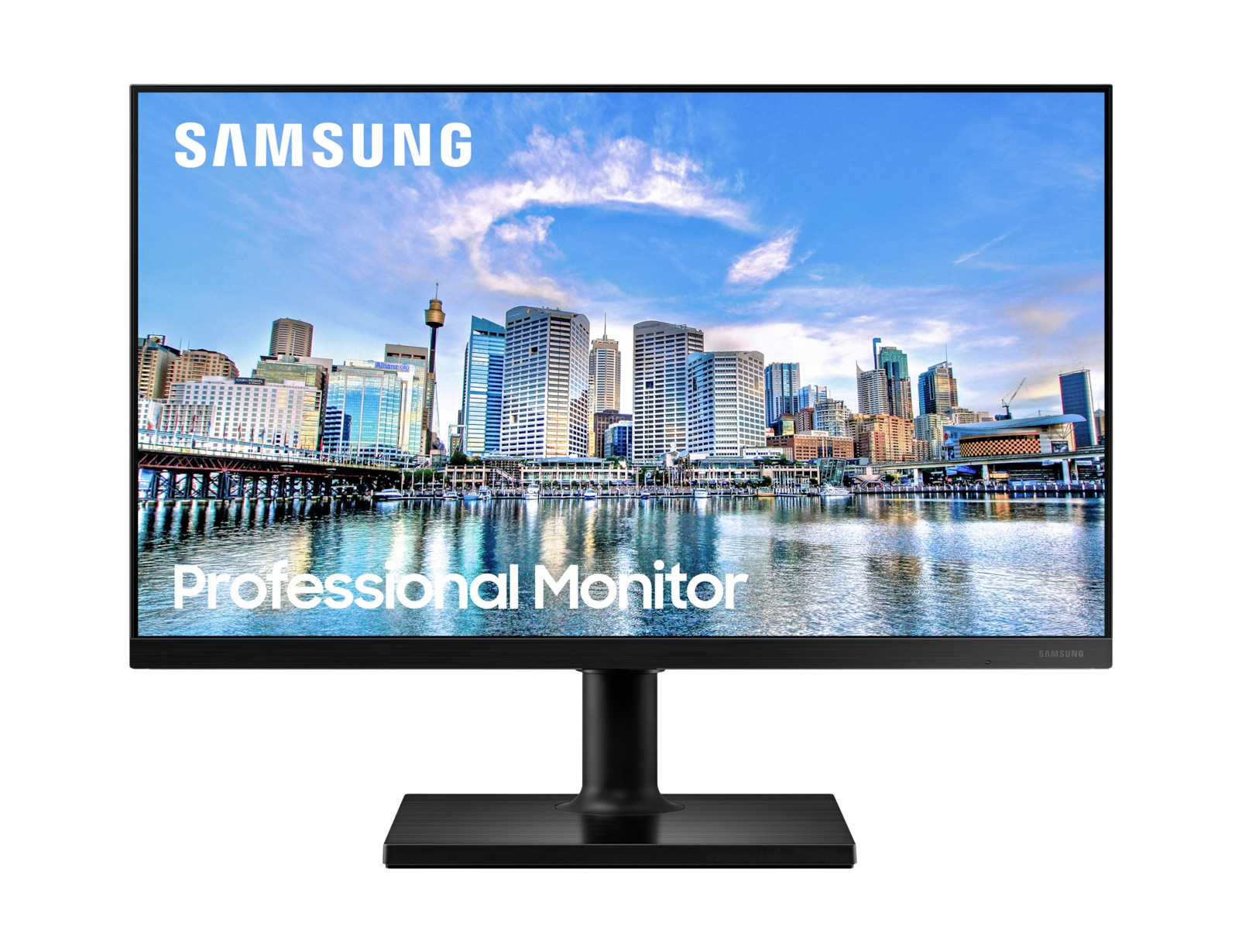


Samsung T45F Manual
PDF manual · 38 Pages
English



Advantages and Disadvantages
Advantages

- Sharp Full HD panel with up to 75 Hz for smoother motion
- Eye Saver Mode and extensive OSD controls reduce eye strain
- USB hub and cable management streamline desk setups
- AMD FreeSync cuts tearing in games and videos
- Ergonomic stand with tilt, height, and rotation
Disadvantages

- Audio over HDMI-DVI may not be supported
- FreeSync behavior may vary by GPU and settings
- Some picture options disabled in specific modes
- No built-in speakers; relies on external audio
- DP cables over 1.5 m may affect picture quality
Ask a Question
Frequently Asked Questions
Set the monitor to 1920x1080 at 60 Hz for optimal clarity. The T45F also supports up to 75 Hz for smoother motion, depending on your GPU and connection.
Is this answer helpful?
Press the JOG button to open the Function Key Guide, then select Eye Saver Mode. You can also find it in the Picture settings within the on‑screen display.
Is this answer helpful?
Yes. Connect via HDMI or DisplayPort, use a compatible AMD GPU with current drivers, and enable FreeSync in the monitor’s System menu and your GPU software.
Is this answer helpful?
Yes. It supports VESA 100x100 mm mounting. Use correct VESA screws and follow safety guidelines to avoid damage or injury.
Is this answer helpful?
Connect your PC to the monitor’s upstream USB port, then plug devices into the monitor’s USB ports. Performance depends on your PC and the USB device.
Is this answer helpful?
Certain modes disable options. For example, Eye Saver Mode, Game Mode, Eco Saving Plus, or Dynamic Contrast can limit brightness, color, or sharpness controls.
Is this answer helpful?
In Windows, go to Control Panel or Settings and run Adjust ClearType text. Ensure the monitor is set to its native 1920x1080 resolution.
Is this answer helpful?
Product Description
Samsung T45F Anleitung: A Practical Guide to a Smarter Monitor
Meet the Samsung T45F
The Samsung T45F series (22, 24, and 27 inches) is a versatile Full HD monitor range built for productivity, comfort, and smooth visuals. With HDMI and DisplayPort connectivity, a built‑in USB hub, and ergonomic adjustments, it’s designed to fit modern workflows at home or in the office.
Why It Stands Out
The T45F focuses on clarity and comfort. Its 1920x1080 resolution at up to 75 Hz keeps text sharp and motion fluid, while Eye Saver Mode and thoughtful on‑screen controls reduce strain during long sessions. AMD FreeSync support helps eliminate tearing in games or fast video, and Eco Saving Plus intelligently trims power use without sacrificing visibility.
Setup, Control, and Connectivity
Getting started is straightforward: attach the stand, connect power, then plug in your preferred source via HDMI or DP. The JOG button makes navigation quick—swap inputs, open the OSD, toggle Eye Saver Mode, or adjust brightness and volume on the fly. Use the USB hub to connect peripherals, and tidy everything with the stand’s cable holder.
Picture customization is deep: choose Standard, Cinema, or Dynamic Contrast, and fine‑tune brightness, contrast, sharpness, and color tone. Game Mode and Response Time settings add snap to motion, while Screen Ratio options ensure content fits perfectly. For multi‑window work, Samsung’s Easy Setting Box (Windows) helps you partition the screen into efficient layouts.
Reliability and Ergonomics
The stand supports tilt and height adjustments, plus rotation for portrait tasks—great for coding or reading. VESA 100x100 mounting allows flexible setups. With features like Off Timer Plus, Eco Timer, and Dynamic Brightness, the T45F balances usability with energy savings.
Notes
- For optimal results, use the supplied HDMI/DP cables and set 1920x1080 @ 60 Hz (up to 75 Hz supported).
- FreeSync works over HDMI or DP with compatible AMD GPUs; set DisplayPort to the correct version.
- If text appears blurry, enable ClearType in Windows.
- Keep vents clear and follow safety guidance for long‑term reliability.\nNo reviews were provided to analyze. There is no available content to summarize or translate.
Search for 1 Mio. Manuals online


Type-in Brand or Model