
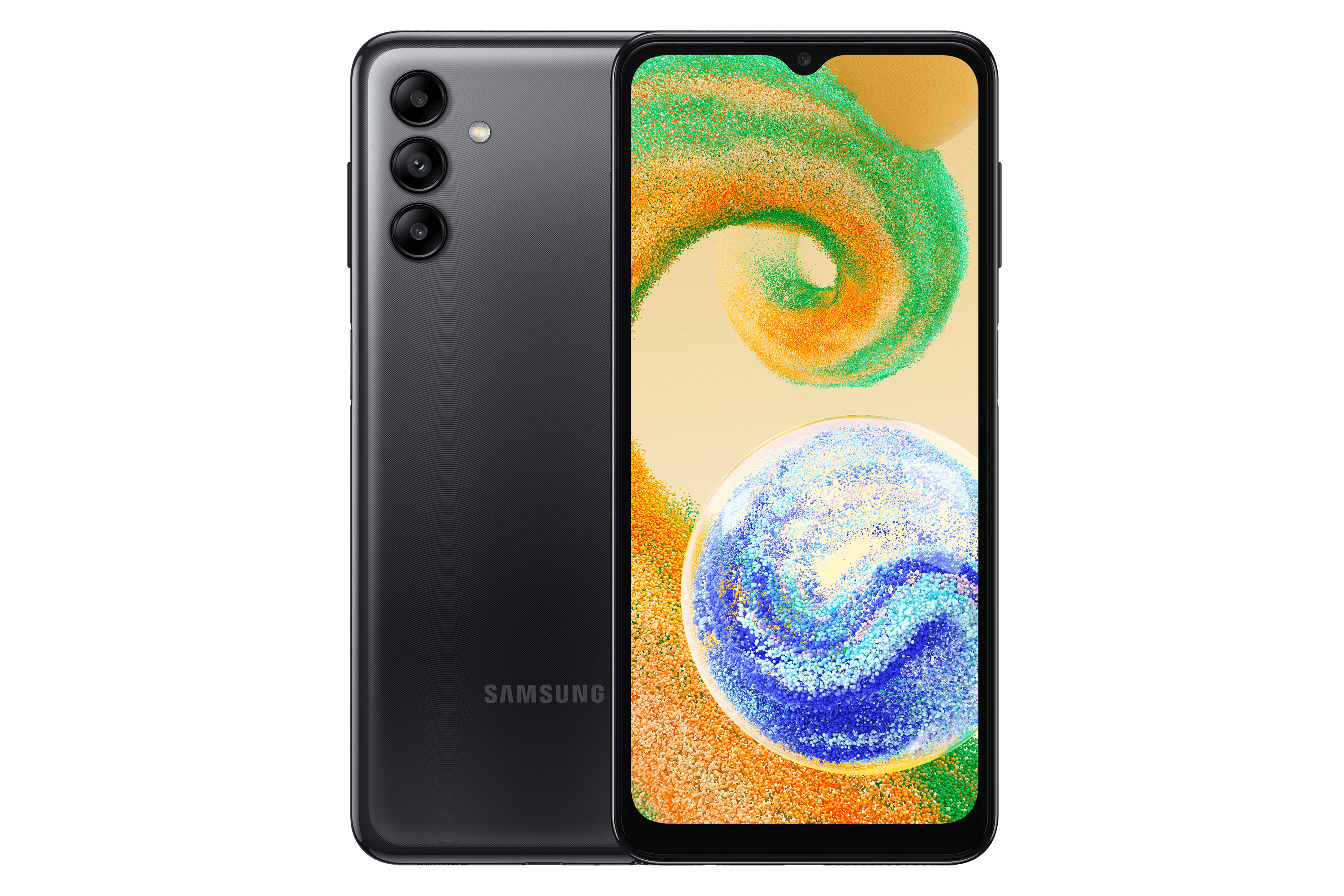


Samsung Galaxy A04s Manual
PDF manual · 109 Pages
English



Advantages and Disadvantages
Advantages

- Clear, guided initial setup and easy data transfer using Smart Switch (cable, wireless, or computer).
- Expandable storage via microSD and dual‑SIM support for flexibility with carriers and numbers.
- Comprehensive battery care options, fast charging support, and practical battery‑saving tips.
- Versatile camera modes (Photo, Portrait, Pro, Macro, Panorama, Food) plus AF/AE lock and HEVC/HEIF options.
- Robust security features: fingerprint (Side key), face recognition, Smart Lock, Find My Mobile, and encryption options.
Disadvantages

- Some advanced features may be unavailable depending on region, carrier, or specific model variant.
- Camera and touchscreen can be damaged by direct strong light, moisture, or improper handling.
- Fast charging and certain sound or camera functions require compatible Samsung‑approved accessories.
- Using two SIM cards may reduce data speeds in some areas compared with a single‑SIM configuration.
- Formatting or encrypting external storage can cause permanent data loss if not backed up first.
Ask a Question
Frequently Asked Questions
Use Smart Switch: via USB cable (connect devices, open Smart Switch, select Receive data), wirelessly using Wi‑Fi Direct, from external storage (restore from SD card), or via the Smart Switch desktop app. Follow on‑screen prompts and ensure both devices have enough battery.
Is this answer helpful?
Use the supplied USB‑C cable and a Samsung‑approved charger that supports the device. Avoid incompatible cables (e.g., Micro USB), keep the multipurpose jack dry, and unplug the charger when not in use. If overheating or charging issues occur, contact a Samsung Service Centre.
Is this answer helpful?
Insert a compatible microSD card (gold contacts down) into the tray. Before removal, unmount the SD card via Settings → Battery and device care → Storage → SD card → Unmount to prevent data corruption. Back up important data before formatting.
Is this answer helpful?
Modes include PHOTO (auto), VIDEO, PORTRAIT (background blur), PRO (manual ISO/EV/WB), PANORAMA, FOOD, MACRO, and DECO PIC. Use PORTRAIT for subject isolation, PRO for manual control in tricky light, MACRO for close subjects, and PANORAMA for wide scenes.
Is this answer helpful?
Go to Settings → Biometrics and security. For fingerprints, register prints (Side key sensor) and follow prompts; for face recognition, register your face in varied lighting. Always set a backup PIN/PATTERN/PASSWORD; biometrics may not unlock immediately after a restart.
Is this answer helpful?
Optimize with Battery and device care, enable power saving mode, close unnecessary apps, switch off Bluetooth and auto‑sync when idle, lower screen brightness and timeout, and use standard refresh rates rather than adaptive when battery life is a priority.
Is this answer helpful?
The A04s supports Wi‑Fi, Wi‑Fi Direct, Bluetooth, NFC (model dependent), Mobile Hotspot, Quick Share for nearby sharing, Smart View for screen mirroring, and SmartThings for IoT control. Specific features may vary by region and carrier.
Is this answer helpful?
Product Description

Samsung Galaxy A04s — Manual Overview
The Samsung Galaxy A04s is an affordable, practical smartphone designed for everyday use, combining essential hardware, helpful software features, and accessible customization options. This manual-style description highlights setup, key functions, connectivity, camera modes, security, and productivity features that make the A04s a solid choice for users who want a reliable device without unnecessary complexity.
Getting started and setup
Powering on the Galaxy A04s is straightforward: press and hold the Side key. The initial setup guides you through language selection, Wi‑Fi or mobile network connections, signing into a Samsung account, and migrating data using Smart Switch (via cable, wireless, external storage, or computer). Dual‑SIM support (nano‑SIM) and microSD expansion are supported, with clear instructions for safe insertion and removal of cards.
Battery and charging
Charge the device using the supplied USB‑C cable and a Samsung‑approved charger. The manual recommends fast charging settings in Battery and device care, and provides battery‑saving tips such as optimising device care, closing unused apps, lowering brightness, and deactivating auto‑sync or Bluetooth when not needed. Safety guidance covers correct cable use, avoiding wet ports, and monitoring charging temperatures.
Display, navigation and input
The A04s uses soft buttons (navigation bar) or gesture navigation, and offers settings to hide the navigation bar for a wider view. Touch interactions include tap, double‑tap, swipe, drag, and tap‑and‑hold. Users can personalise the Home screen with widgets, themes, wallpapers, folders, and app layout options. The keyboard supports multiple languages, voice input, emojis, clipboard functions, and quick access tools like translate or attachments.
Connectivity and sharing
Connections include Wi‑Fi, Bluetooth, Wi‑Fi Direct, NFC (on supported models), mobile hotspot, and more. The SIM card manager handles dual‑SIM preferences and auto data switching. Quick Share and Smart View enable fast local sharing and screen mirroring; SmartThings integrates IoT device control. Data saver and mobile‑data‑only app options help manage usage and costs.
Camera and multimedia
The camera app offers Photo, Video, Portrait, Pro, Panorama, Macro, Food, and sticker (Deco Pic) modes. Features include AF/AE lock, zoom controls, high‑resolution capture, filters, beauty effects, HEIF/HEVC options for efficient storage, and toolbar actions after screenshots. Tips cover avoiding lens damage, preventing condensation, and optimising lighting and composition.
Security and device care
Biometric options include face recognition and fingerprint registration (Side key sensor). Screen lock types, Smart Lock trusted locations, device encryption, Find My Mobile, and Google Play Protect help secure the phone. Battery & device care provides storage, memory, and diagnostic tools to keep performance optimal.
Apps and productivity
Preinstalled Samsung and Google apps—Gallery, Samsung Notes, Samsung Health, Calendar, Reminder, Voice Recorder, My Files, Game Booster, and more—support everyday tasks, health tracking, media management, and gaming. Galaxy Store and Play Store let users install or manage apps, control permissions, and disable or uninstall apps where allowed.
Notes
- Follow safety instructions: avoid exposure of the camera sensor to intense light and keep ports dry.
- Use only compatible, approved chargers and cables.
- Back up important data before formatting memory cards or performing resets.
- Some features vary by model, carrier, or region.
Search for 1 Mio. Manuals online


Type-in Brand or Model