
Dell Dock WD19 Manual
PDF manual · 35 Pages
English



Advantages and Disadvantages
Advantages

- Robust multi‑monitor support with DP 1.4, HDMI 2.0, and MFDP Type‑C
- ExpressCharge and Boost deliver fast, reliable laptop charging
- Enterprise features: WoL, MAC pass‑through, firmware tools
- Clear LED status, power button mirroring, and Kensington lock
- Stable Gigabit Ethernet with Realtek controller
Disadvantages

- Peak display configs require HBR3 and discrete GPUs
- Full power delivery depends on 240 W adapter and model
- HDMI and MFDP Type‑C cannot drive two displays simultaneously
- Driver/firmware upkeep is essential for best stability
- Linux may support fewer displays in HBR2 modes
Ask a Question
Frequently Asked Questions
Select Dell Latitude, Precision, and XPS models offer the best experience, including power button mirroring, ExpressCharge, and full display support. Check Dell’s Docking Compatibility Guide to confirm your exact model’s capabilities and limits.
Is this answer helpful?
On HBR3 systems with discrete GPUs, it can drive higher‑resolution multi‑display setups; HBR2 systems handle up to QHD‑focused arrays. Actual limits depend on GPU, bandwidth (DP 1.2 vs 1.4), and which ports you use.
Is this answer helpful?
Yes. With a 240 W adapter, it delivers up to 210 W for select Precision models or 130 W for supported Dell laptops. ExpressCharge reaches ~80% in about an hour; ExpressCharge Boost can add up to ~35% in 15 minutes on compatible systems.
Is this answer helpful?
Update BIOS, GPU drivers, and dock firmware. Reseat cables, confirm monitor input sources, and verify resolution limits. Use certified DP/HDMI cables and ensure the system is using the supported DP/MFDP path for the chosen port.
Is this answer helpful?
No. On WD19 series docks, the rear HDMI 2.0 and MFDP Type‑C display functions are switchable, not simultaneous. Only one of those two ports can output video at a time alongside the DisplayPort outputs.
Is this answer helpful?
Use Dell Command | Update or Dell Update on supported systems to update BIOS, GPU drivers, and dock firmware. Reboot after major updates and avoid disconnecting the dock during firmware flashing.
Is this answer helpful?
The fan ramps with thermal load or high ambient temperatures. Ensure ventilation is unobstructed. If the dock overheats and shuts down, disconnect power and USB‑C, wait 15 seconds, then reconnect to recover.
Is this answer helpful?
Product Description
Dell Dock WD19 Handbuch: Power, Ports, and Pro Productivity
A Modern Hub for Multi‑Display Workflows
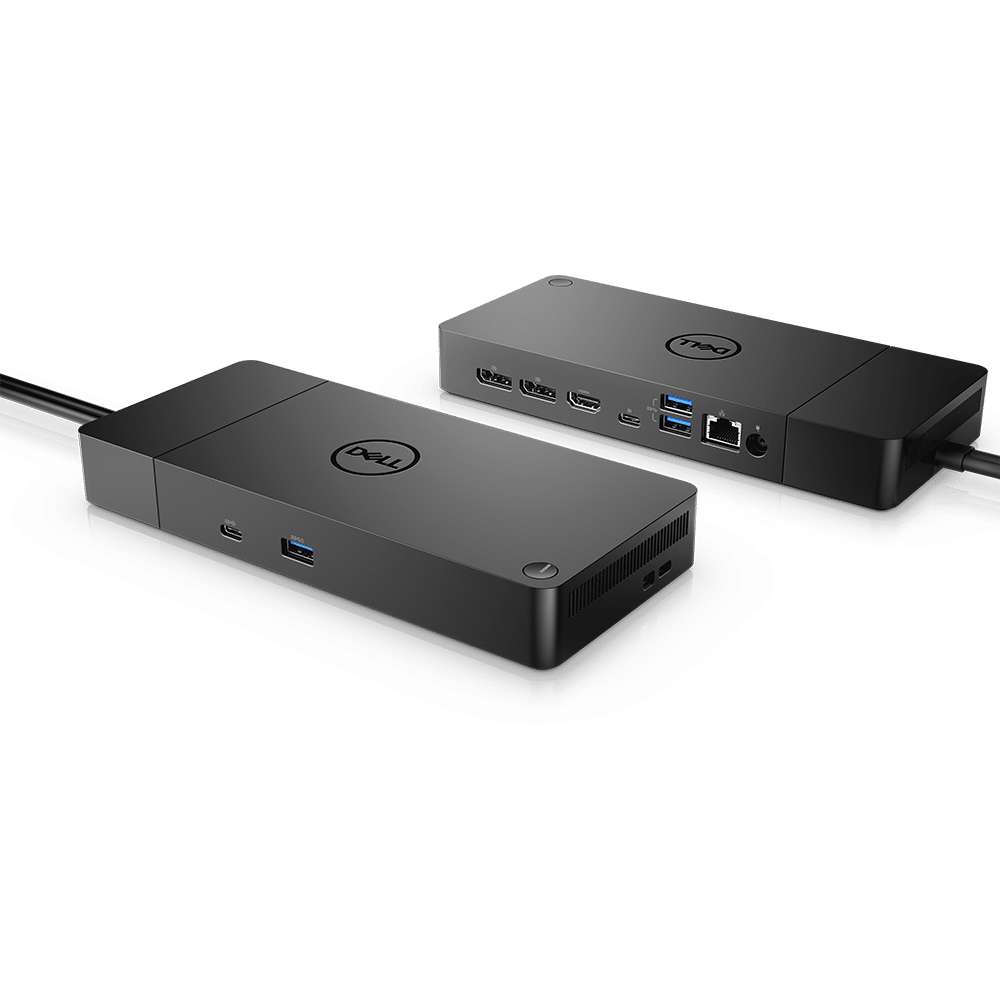
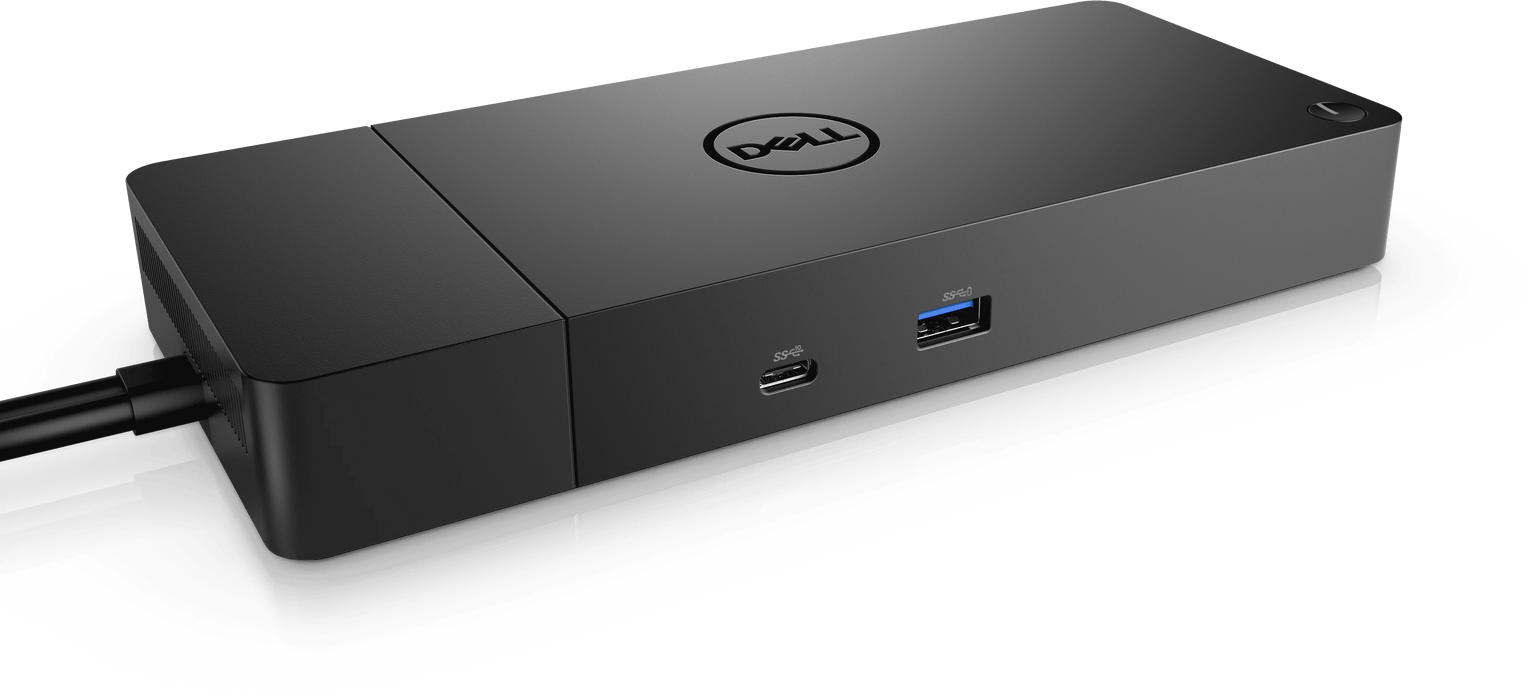
The Dell Dock WD19 is built to streamline complex desk setups. With dual USB Type‑C connectivity, it feeds your laptop while unlocking peripherals—keyboards, mice, Ethernet, storage, headsets—and up to four displays on capable systems. For creators, engineers, and power users, it balances bandwidth, charging, and reliability to keep projects moving.
Performance Meets Practicality
At its core, the WD19 supports DP 1.4 and HDMI 2.0 via modular Type‑C/MFDP ports, plus dual DisplayPort++ 1.4 for flexible monitor layouts. On HBR3 systems with discrete graphics, it can drive high‑resolution arrays, while HBR2 remains solid for QHD‑heavy desks. Ethernet via Realtek Gigabit ensures stable, low‑latency networking, with MAC Address Pass‑Through and WoL support on select Dell devices.
Charging is a highlight. With ExpressCharge, compatible Dell systems can jump to 80% in about an hour and full in roughly two. ExpressCharge Boost delivers rapid top‑ups when time is tight. Power delivery scales up to 210 W for select Precision laptops and 130 W for mainstream Dell systems using a 240 W adapter.
The integrated power button mirrors supported Dell systems, enabling wake, sleep, or force‑shutdown from the dock. A Kensington lock slot, clear LED indicators, and service tag labeling add security and serviceability touches for IT fleets.
Setup, Updates, and Stability
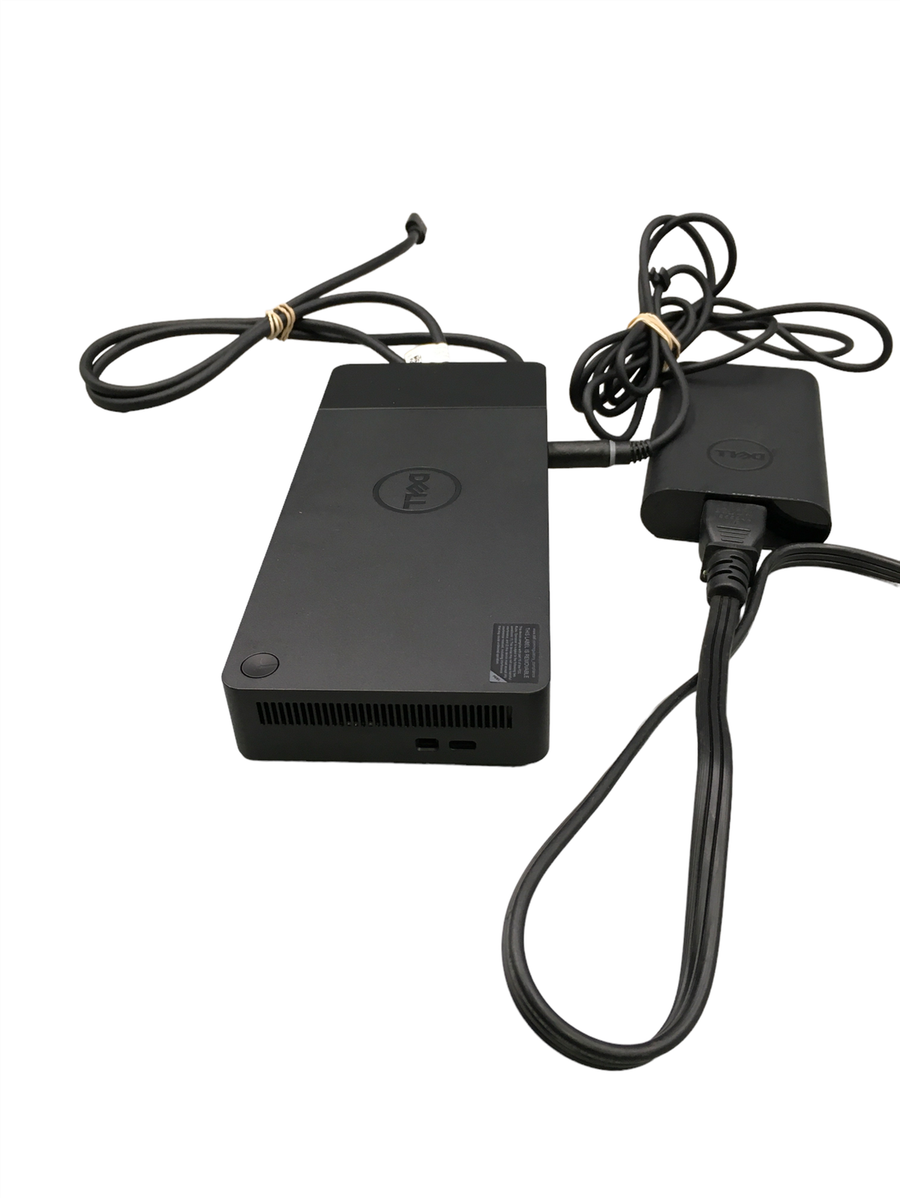
Best results come from keeping BIOS, GPU drivers, and dock firmware current. Dell Command | Update and Dell Update automate most of it on Latitude, Precision, and XPS lines. Once powered, connect a single USB‑C cable to supported hosts; the second cable can trickle up to 15 W to accessories like phones or tablets.
Monitor configuration is straightforward in Windows Display settings. For demanding 4K or multi‑monitor layouts, ensure GPU drivers are current and cables are certified. If you encounter flicker or missing outputs, reseat cables, verify sources, and check resolution limits per port bandwidth.
Notes
- Dell Dock WD19 Handbuch keyword focus: This guide explores features, setup, and optimization tips for the WD19 family.
- Compatibility varies; consult Dell’s docking compatibility guide for exact model support.
- Linux supports fewer displays in some HBR2 scenarios; plan layouts accordingly.\nThere are no reviews available to analyze. Without feedback, it is not possible to identify standout strengths or recurring issues, highlight sentiment trends, or extract notable moments. The absence of comments leaves questions about performance, reliability, design, usability, support, and overall satisfaction unanswered. This also means there is no indication of consistency across experiences, no clear signal on value for money, and no insight into potential deal-breakers or delightful surprises. As new evaluations become available, a clearer picture can emerge—showing what resonates most, what needs refinement, and which aspects truly define the experience. For now, expectations should be set with caution, and attention focused on gathering firsthand impressions or early reports from trusted sources to form a grounded perspective.
Search for 1 Mio. Manuals online


Type-in Brand or Model